Table of Contents
Broadcasts | Campaigns | Forms | Settings | Pricing | Review
Until recently, Podia’s email features have been useful but a little basic.
You could send simple broadcasts and campaigns and let site visitors sign up for a newsletter but the options within those areas were relatively limited.
However, Podia email just got a major overhaul.
And though it may lack the bells and whistles of the more established email players, it won’t be long before some of those big names are glancing nervously over their shoulders.
So let’s dive in and see what Podia Email has to offer.
Email Marketing Pillars: Broadcasts, Campaigns and Forms
When I think about email marketing software, I think of three main areas: broadcasts, campaigns and forms:
- Email broadcasts are single emails sent to all recipients at the same time either the moment you click “Send” or delayed to some future time.
- Email campaigns are one or more emails triggered by certain events and delivered to a predefined schedule, like Day 1, Day 2, Day 3, etc.
- Email forms are how people get onto your email list in the first place.
Let’s explore each one in turn.
Email Broadcasts
Email broadcasts are those “everyone, all-at-once” email blasts that work so well for newsletters, announcements and time-sensitive promotions.
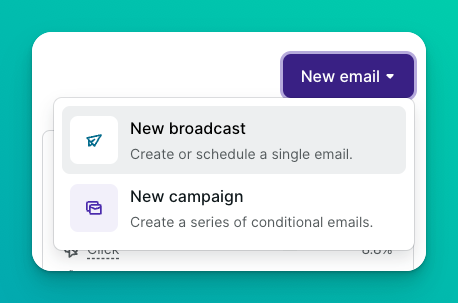
To understand broadcasts better, I find it makes sense to think of Podia’s broadcast functionality as being divided into four areas:
- Email builder - for creating your emails
- Premade templates - for customising your design
- Sending options - for deciding who gets your emails
- Analytics - for seeing how your emails performed
We’ll tackle each one in turn.
Email Builder
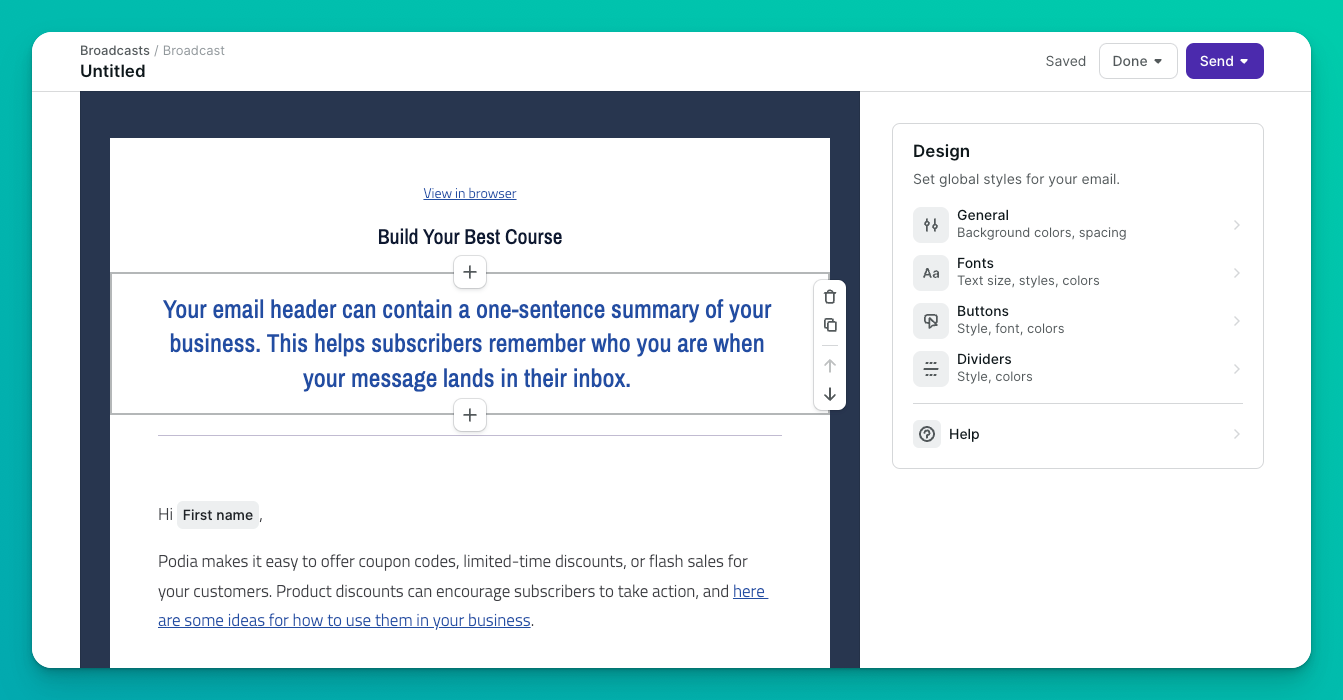
The email builder is, drumroll please… where you build your emails!
Functionally, it’s similar to the page builder used to build web pages for your Podia website.
But if you’re not familiar with the page builder, it breaks each page (or in this case, email) into a series of vertical sections.
By clicking the ”+” symbol above or below an existing section, you can add a brand new section.
The simplest version of this top-to-bottom layout is just a header, a text section (containing your email content) and a footer.
But in practice, you have a lot more flexibility when it comes to choosing the sections you want to insert.

In fact, here are your section options:
- Text — a rich text section with a variety of heading and body styles
- Divider — a simple horizontal rule to break up different sections
- Button — a simple inline button with a corresponding link
- Image — an embedded image uploaded by you or chosen from Unsplash
- Socials — a “toolbar” of social icons with corresponding links
- File — an embeddable and downloadable file (for example, a PDF)
And here are the fixed sections (one per email and non-optional) I’ve already mentioned:
- Header — an image or logo plus a link to view the email in your browser
- Footer — your logo (optional), mailing address and an unsubscribe link
The Text section
When creating your emails, you’ll have at least one Text section for containing your content, so let’s focus on that for a moment.
The styles available to you are: Heading 1, Heading 2, Large text, Small text, Bullet list, Ordered list, Code block and Blockquote.
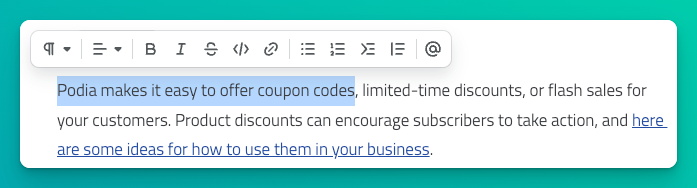
You can also add links to your content and basic personalisation by adding the recipient’s name.
Speaking of links, there’s an (almost) hidden feature that deserves a separate mention: tagging.
Tagging
Although it’s lurking behind the hyperlink button in the email builder, you won’t want to miss Podia’s powerful tagging feature.
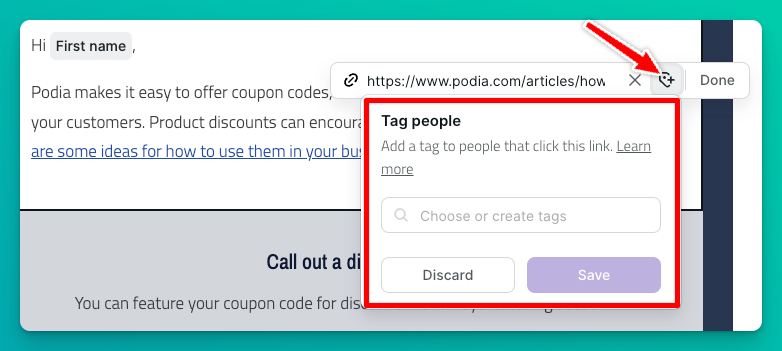
When adding a link to a piece of text, you can also choose to add one or more tags to any contact who clicks the link when it lands in their inbox.
There are lots of ways to use this feature, particularly when combined with email campaigns. Here are some quick examples:
- You can tag contacts with specific interests based on the links they click, e.g., “Interest: Vegan Food” and then follow up with interest-specific offers later on
- You can tag contacts who want to opt out of specific marketing campaigns without forcing them to unsubscribe from your email list altogether
- You can tag contacts who want to opt into an automated campaign like a free email mini-course
The possibilities are endless, and fortunately the same functionality is available for buttons too.
Design customisation
Let’s talk briefly about design customisation.
Each section type has a corresponding panel for adjusting design elements such as: padding, colours, text alignment, image width and corner style (square, rounded, etc.)
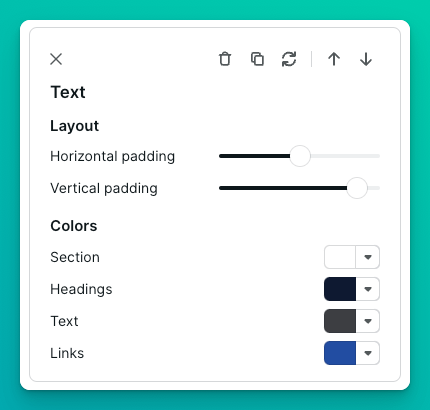
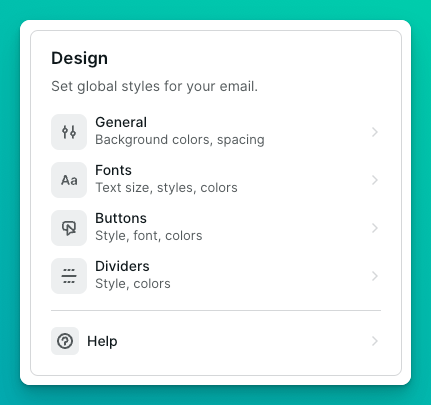
The exact options depend on the section but they provide a good amount of flexibility and you also have a panel for setting global styles for your email.
Premade Templates
You can create your emails from scratch, but you’ll save a lot of time by using Podia’s premade templates.
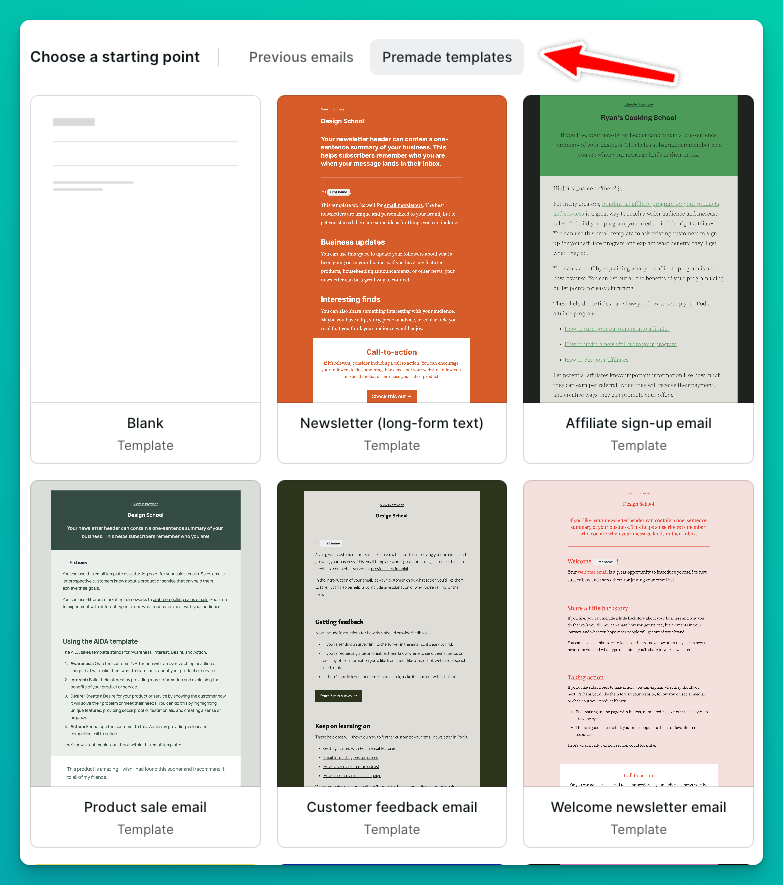
These not only give you a variety of design options but also a basic structure for different types of emails.
Templates are provided for all of the following use cases:
- Welcoming new subscribers — there’s a template for emails designed to be included in an email welcome campaign for new subscribers
- Delivering a lead magnet — there’s a template for email delivery of a lead magnet, like a PDF, immediately after sign-up
- Sending a newsletter — three templates cover: text-based newsletters, image-heavy newsletters, and a mix of the two
- Selling a product — two templates are provided as starting points: one general purpose sales email and another for offering a limited time discount
- Thanking new customers — there’s a template for a post-purchase email that gives onboarding instructions to a customer
- Confirming waitlist registration — there’s a template for emails that are sent after someone joins the waitlist for a product that’s not yet available
- Getting customer feedback — there’s a template designed for asking customers to complete a survey, share feedback or provide a testimonial
- Welcoming new affiliates — there’s a template for creating welcome emails for new affiliates (contacts who promote your products for a commission)
- Promoting a live event — there’s a template that provides details for an upcoming live event or webinar and let’s subscribers register
What I love about these premade templates is that they’re not just design templates (since each template has a distinctive visual look), they’re content templates too.
That means, for instance, if you’re sending a sales email the template shows you how to structure that kind of email, which is great for beginners.
In practice, there are two ways to use them:
-
If you like the design of a specific template you can choose it for your email then replace the content to suit your purpose.
-
If you like the structure of a specific template, you can choose it for your email and then tailor the design to your needs.
Of course, if the design and the structure meet your needs then you’re off to the races!
Sending Options
Once you’ve created your email, whether from scratch or by customising a premade template, you have a few options to configure before sending.
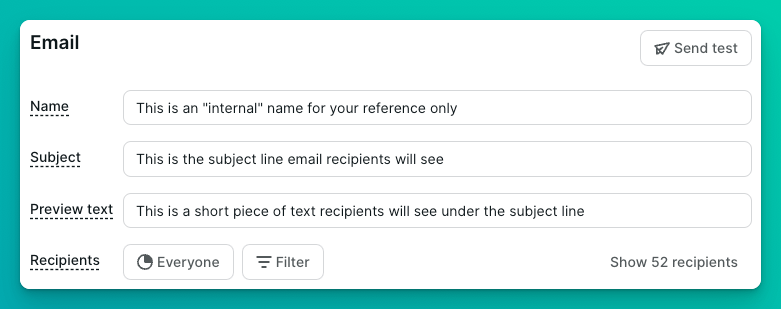
Here’s a quick breakdown:
- Name — an “internal” name for your broadcast, like “Black Friday Promo 2023”
- Subject — the email subject line that recipients see, like “Black Friday Only - Get 50% Off”
- Preview text — a short piece of text that most email clients will show under the subject line when it arrives in your inbox
- Recipients — a list of criteria for deciding who will receive the broadcast
The first three options are fairly simple, but let’s talk more about Recipients.
Above, I described an email broadcast as an “everyone, all at once” type of email and you can certainly send an email to everyone in your list.
However, Podia also gives you a very comprehensive set of criteria for narrowing down your list of recipients.
Everything’s based on filters — you combine different filters to get the exact criteria you need.
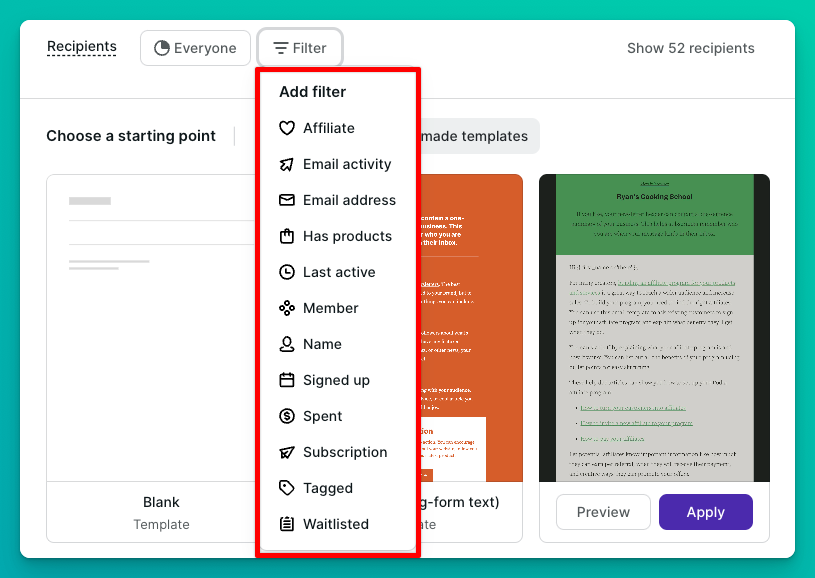
Here’s a description of the most useful filters:
- Tagged — filter recipients based on them having (or not having) certain tags
- Has products — filter recipients based on them owning (or not owning) specific products, types of products, or even numbers of products
- Member — filter recipients based on their membership, non-membership, or length of membership of any subscription plans (free or paid)
- Spent - filter recipients based on how much money they have spent with you
- Last active — filter recipients based on how recently they were last active on your Podia site (e.g., more than 90 days ago)
- Signed up — filter recipients based on how recently they signed up for your site (e.g., more than 90 days ago)
- Email — filter recipients based on their email address (e.g., only gmail.com addresses)
- Affiliate — filter recipients based on whether they are an affiliate or not
Notice just how many options you have here!
One of the big advantages of using an all-in-one platform like Podia is that you have access to lots of extra information about your contacts, like how much money they’ve spent with you. And you can use that information to send very targeted emails.
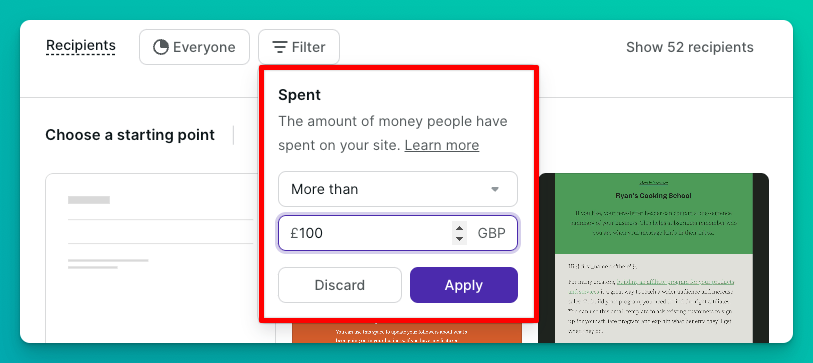
Note: a typical “email only” platform that’s divorced from the other aspects of your business wouldn’t have this depth of information.
Segments
Segments are essentially saved filters. So if you’ve configured a filter that you think will be useful to you in future you can give it a name and save it as a segment.
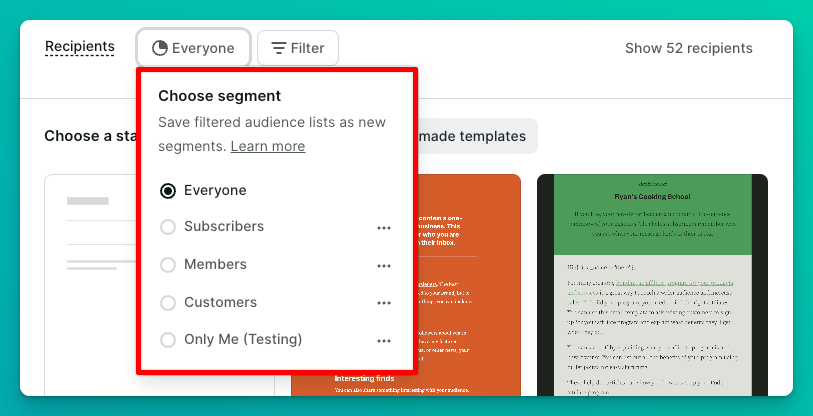
So let’s say you wanted to promote a certain product using a series of broadcast emails.
You could create a segment which excludes contacts who already own the product — and any bundles that include the product — and then save it as a filter. Using that segment would avoid promoting a product to people who already own it.
Analytics
Podia Email provides a set of useful statistics for each broadcast you send.
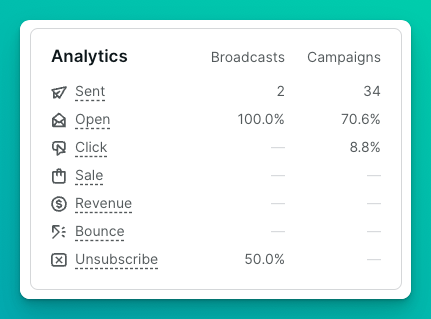
Here’s a quick description of each:
- Sent — total number of emails sent in this broadcast
- Open — % of emails that were opened
- Click — % of emails with links that were clicked
- Sale — % of emails that led to a new product or community sign-up
- Bounce — % of emails that could not be delivered
- Unsubscribe — % of emails that resulted in an unsubscribe
These statistics can help you identify which of your emails performed the best (and worst), so you can optimise your strategy in future.
How could you use Podia Email Broadcasts?
The most obvious uses of email broadcasts have already been touched upon, for example:
- Sending a regular newsletter or blog post to your subscribers
- Promoting a new product or time-sensitive offer
- Sending news or announcements about your business
But using Podia’s fine-grain sending options you could also:
- Email customers who own several products to thank and reward them
- Invite your highest-spending customers to an exclusive event
- Send a new product announcement to all of your existing affiliates
- Send a re-engagement email to inactive subscribers
What are the current limitations?
No software has every possible feature you might need, and Podia Email is no exception.
So here’s a limitation of Podia Email Broadcasts to be aware of:
- When filtering recipients, you can’t create filter groups, e.g., “match all of these conditions AND none of these conditions”
Email Campaigns
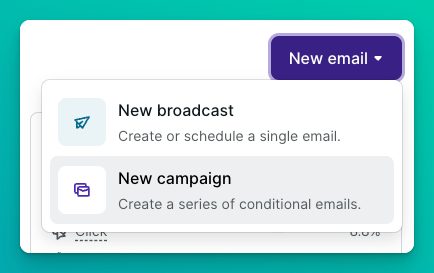
If an email broadcast is one email sent to several people at the same time, an email campaign is a sequence of emails sent to individuals based on when they were added to the campaign and the timings of the individual emails within in.
Let’s bring this to life with an example.
You could use an email campaign to create a simple “welcome sequence” for your newsletter that sends new subscribers an email as soon as they sign up and then one email a day for a few days to introduce them to you and your newsletter.
Pretty simple, right?
How Podia email campaigns work
The way campaigns work in Podia is that recipients are added to a campaign based on certain predetermined criteria, or entrance conditions.
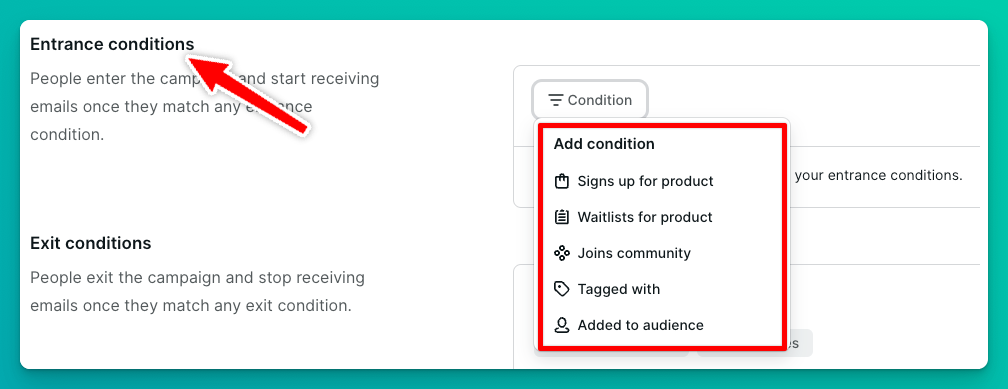
For instance, a simple entrance condition could be the purchase of a specific product. As soon as anyone buys that product they’ll be added to any campaigns where that specific purchase is an entrance condition.
Here are the available entrance conditions:
- Signs up for a product — a contact buys or is given access to a specific product
- Waitlists for a product — a contact joins the wait list for a specific product
- Joins community — a contact joins a specific community plan
- Tagged with — a specific tag is added to a contact
- Added to audience — a new contact is added as a subscriber
Note: when you create a new campaign you can decide whether or not to automatically add people who already match the entrance criteria to the campaign.
Campaigns also have exit conditions, which “pull” people out of the campaign if and when they meet specific conditions.
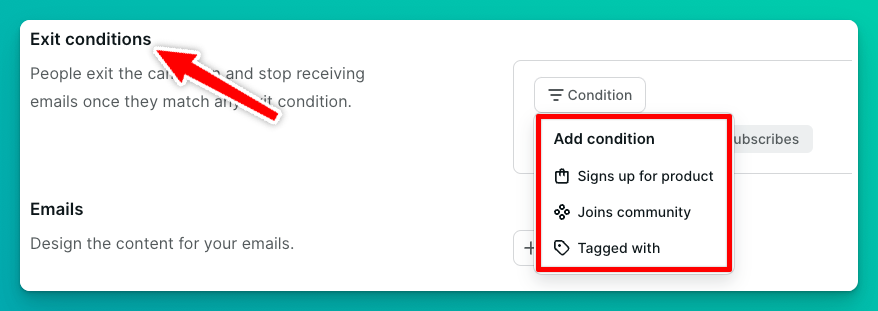
For example, if a contact is in a week-long campaign designed to get them to buy a certain product and they go ahead and buy that product on Day 4, you won’t want them to receive more promotional emails on Days 5, 6 and 7 — because they bought already!
Here are the available exit conditions (same meanings as above):
- Signs up for a product
- Joins community
- Tagged with
Note: a subscriber is automatically exited from an email campaign once they reach the last email or if they unsubscribe from your list all together.
What campaigns and broadcasts have in common
Despite the functional differences, several email campaign features are shared with email broadcasts.
Specifically:
- Email builder — when creating individual emails within a campaign you use exactly the same builder as with broadcasts
- Premade templates — the same templates available to you for one-off broadcast emails can be used to add new emails to a campaign
Drilling down to creating individual emails, while you still provide a Subject and some Preview text, you don’t need to provide criteria for the recipients (because they’re determined by the entrance conditions instead).
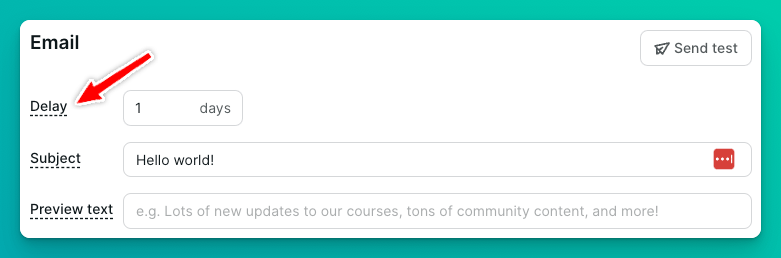
However, you do have an additional option called Delay, which controls how many days after joining the campaign a specific email is sent.
How could you use Podia Email Campaigns?
We’ve already alluded to a few ways of using email campaigns, but here are some different possibilities:
- Send an email welcome campaign to new subscribers
- Send an email onboarding campaign to new customers
- Check-in with new customers 30 days after purchase
- Send an email mini-course to new or existing subscribers
- Remove a subscriber from an email sales sequence when they buy
- Send a reminder to product buyers to join the support community
What are the current limitations?
Here are some limitations of Podia Email Campaigns to be aware of:
- You can’t combine conditions for entrance or exit using AND logic, only OR (i.e., if any of these criteria are met, then enter/exit the campaign)
- You can’t build more powerful rule-based or branching automations of the kind supported by some of the more established email tools
What feature would I love to see added?
I’m sure Podia has some exciting features on the email product roadmap. Here’s one feature I’d love them to add to email campaigns:
- The ability to create an entire email campaign (e.g., product launch) with a single click that creates all of the individual emails complete with default timings
Email Forms
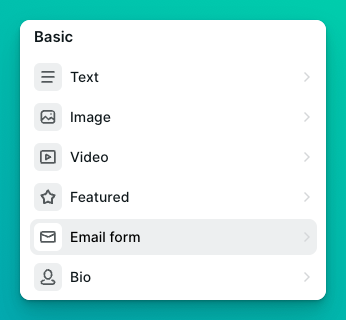
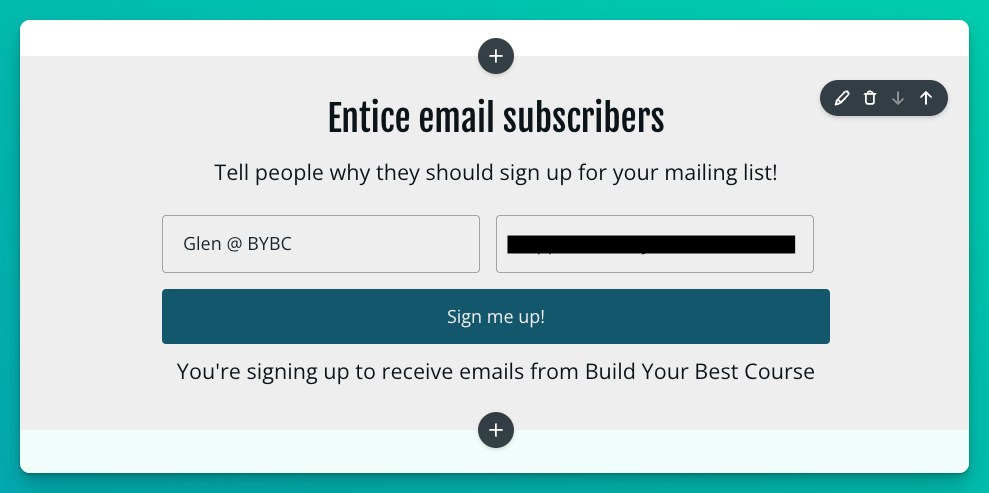
Email forms (or opt-in forms) are how you turn visitors into subscribers.
They’re those little boxes asking for an email address (and maybe a first name too) together with an eye-catching button inviting you to “Sign me up!”.
Podia’s email forms are simple but effective.
In the site builder (which you use to create richly-formatted sales pages for your products and other pages for your website) there’s an email form section which includes the basic fields you would expect — name and email address.
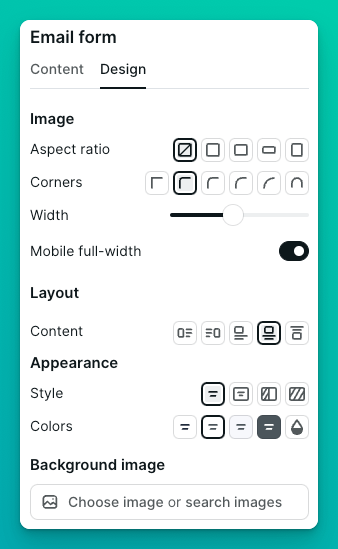
You also have some simple design options.
For example you can:
- Add an image left, right, above or below the form and adjust its width
- Change the fonts, colours, spacing and alignment
- and so on…
One simple but very useful feature is that you can associate an email form with one or more tags. This means that when a new subscriber joins your list those tags are automatically applied to their contact record.

This is powerful because those tags can be used to trigger email campaigns via entrance conditions, giving you endless possibilities for different opt-in paths for your site.
For instance, subscribers can get different follow-up emails (and different lead magnets) depending on the specific form they used to sign up.
You can also use them to create simple sales funnels for your products.
How could you use Podia Email Forms?
Really, you can use opt-ins wherever you want to encourage site visitors to subscribe to your emails. Here are a few ideas:
- Add an email form to the front page of your website to capture contact details from visitors who want to hear more from you
- Create a dedicated landing page that offers an enticing freebie (like a download or email course) in exchange for an email address
- Offer a free “discovery” call for potential clients by creating a page with an email form, then sending the booking link in a follow-up email
What are the current limitations?
Here are some limitations of Podia Email Forms to be aware of:
- You can’t add any custom fields — just a name and email address
- You can’t specify a custom landing page after signing up — new subscribers simply see a brief message thanking them for subscribing
- You can’t customise the content (or subject line) of the email that new subscribers receive asking them to confirm their email address
- You can’t customise the page that new subscribers see after confirming their address (they’re just sent to the front page of your site)
What features would I love to see added?
Email forms are a little basic at the moment and so there are a few features I’d love to see added to the Podia email roadmap:
- Add a checkbox for granting explicit GDPR consent (currently you’ll need to add text to make it clear that subscribing indicates consent)
- Add support for new form types in addition to the inline form supported by the site builder, for example: a modal pop-up form
- Allow Podia email forms to be easily embedded on other (non-Podia) sites via HTML or Javascript code
Email Settings
Behind the scenes there are a few email-related settings you may want to know about so I’m covering them off in a final section.
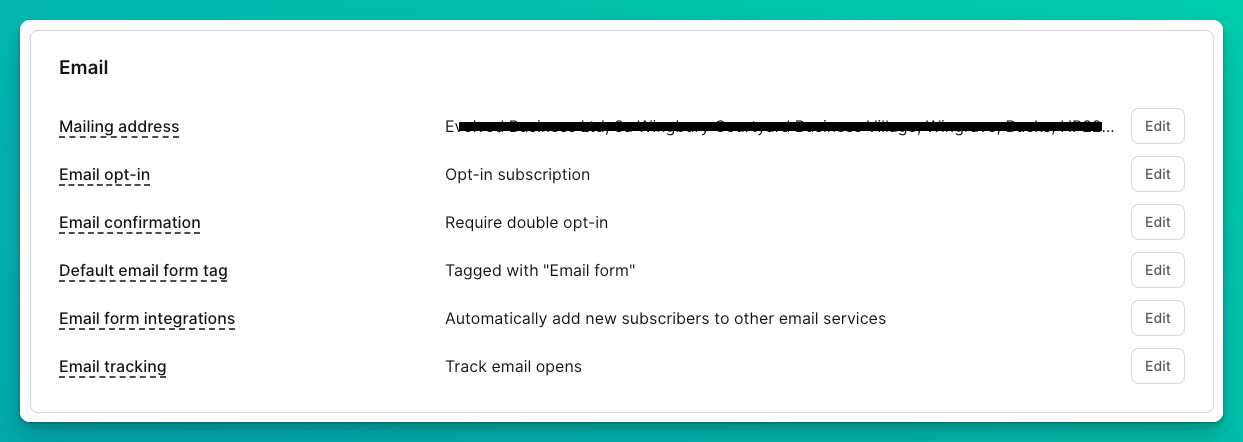
- Mailing address — this is the physical address shown in every email footer as required in the US by CAN-SPAM and in many other countries too
- Email opt-in — this setting determines whether buyers are automatically subscribed to your broadcast emails (e.g., marketing emails) or whether they have to explicitly opt-in via a checkbox (with configurable text)
- Email confirmation — this setting determines whether new subscribers need to confirm their email address (by clicking a link in an system-generated email) or are automatically subscribed after sign up
- Default email form tag — this setting specifies a tag that’s added by default to contacts who subscribe via any email form on your site
- Email form integrations — lets you automatically add new Podia subscribers to other email services, e.g., ConvertKit, MailerLite, etc.
- Email tracking — this setting determines whether or not Podia attempts to track “opens” of your broadcast and campaign emails
Sending from a custom domain
One setting which is not available in the Podia interface — only by emailing Podia support — is sending your emails from your own custom domain.
This means that instead of your outbound emails having no-reply@e.podia.com as their sender address, you can use an address on a domain you own, such as me@mydomain.com.
There’s some technical setup to do behind the scenes, but it’s worth doing if you send a lot of emails.
Pricing
Okay, so what does it cost?
Well, the good news is that Podia Email is free for up to 100 contacts.
Once you outgrow the free plan, the following pricing kicks in:
Podia Email Monthly and Annual Costs
| Subscribers | Monthly | Annualized | |
|---|---|---|---|
| 500 | $9 | $7 | ($84/year) |
| 1,500 | $17 | $13 | ($156/year) |
| 2,500 | $25 | $20 | ($240/year) |
| 5,000 | $42 | $34 | ($408/year) |
| 10,000 | $63 | $50 | ($600/year) |
As you can see, Podia Email is very competitively priced. It compares well with other email marketing options and is great for people just starting to build their email lists.
Podia Email — Final Review
Podia’s brand new and fully turbo-charged email service is great news for anyone looking to start or grow a business online.
If you’re already using Podia you now have a much richer set of features for engaging with prospects and customers using email. You have more design choices, more configuration options and more automation.
If you haven’t chosen an email platform yet, and you’re looking for a simple but scalable solution, you will find plenty to like in Podia Email. It’s not as fully-featured as some platforms that have been in the market for longer but it does have some big advantages.
For instance, if you decide to branch out into digital products like online courses, all the features you need are already available inside the same platform. No need to go hunting for a completely separate tool to integrate.
Also, as your business grows, having your email marketing so tightly integrated with the rest of your online business is really powerful. All of your business intelligence is in one place, not scattered across several platforms.
Finally, if you prefer to focus on your business instead of the technology, Podia has a great track record of keeping things simple by giving you just the functionality you need to succeed (instead of dazzling you with extra shiny features that make your brain hurt).
If Podia Email sounds like it could be a good fit for you, why not give it a try?
Disclosure: this article contains affiliate links, which means I may receive a small commission (at no cost to you) if you decide to make a purchase.